Knowledge Bases & Documents
A knowledge base is a collection of documents, an Agent canvas, and retrieval configuration. The knowledge base list page shows all knowledge bases and their document counts:
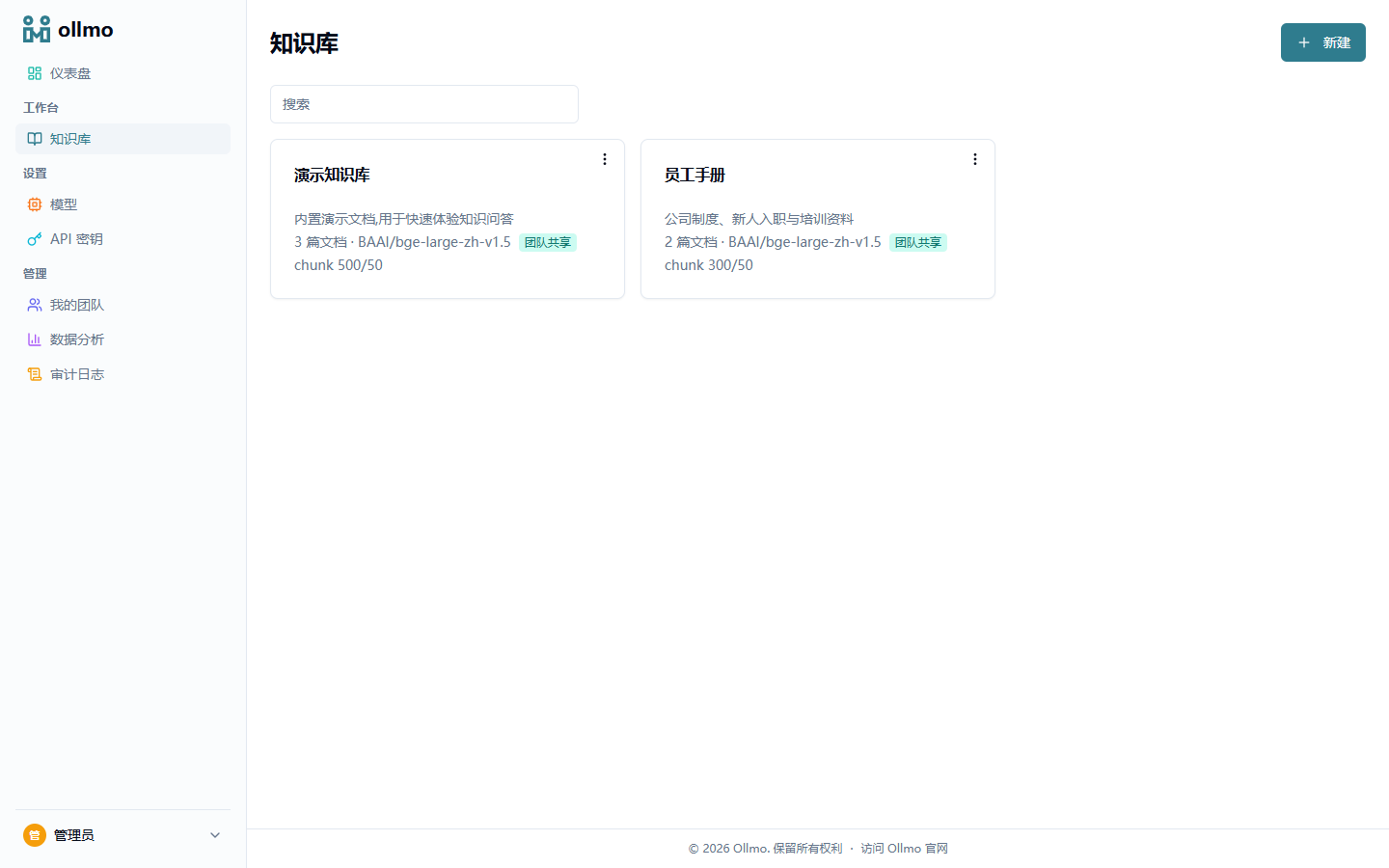
Create a knowledge base
Click "New knowledge base", enter a name and description, and optionally specify an Embedding model (leave empty to use the team default):
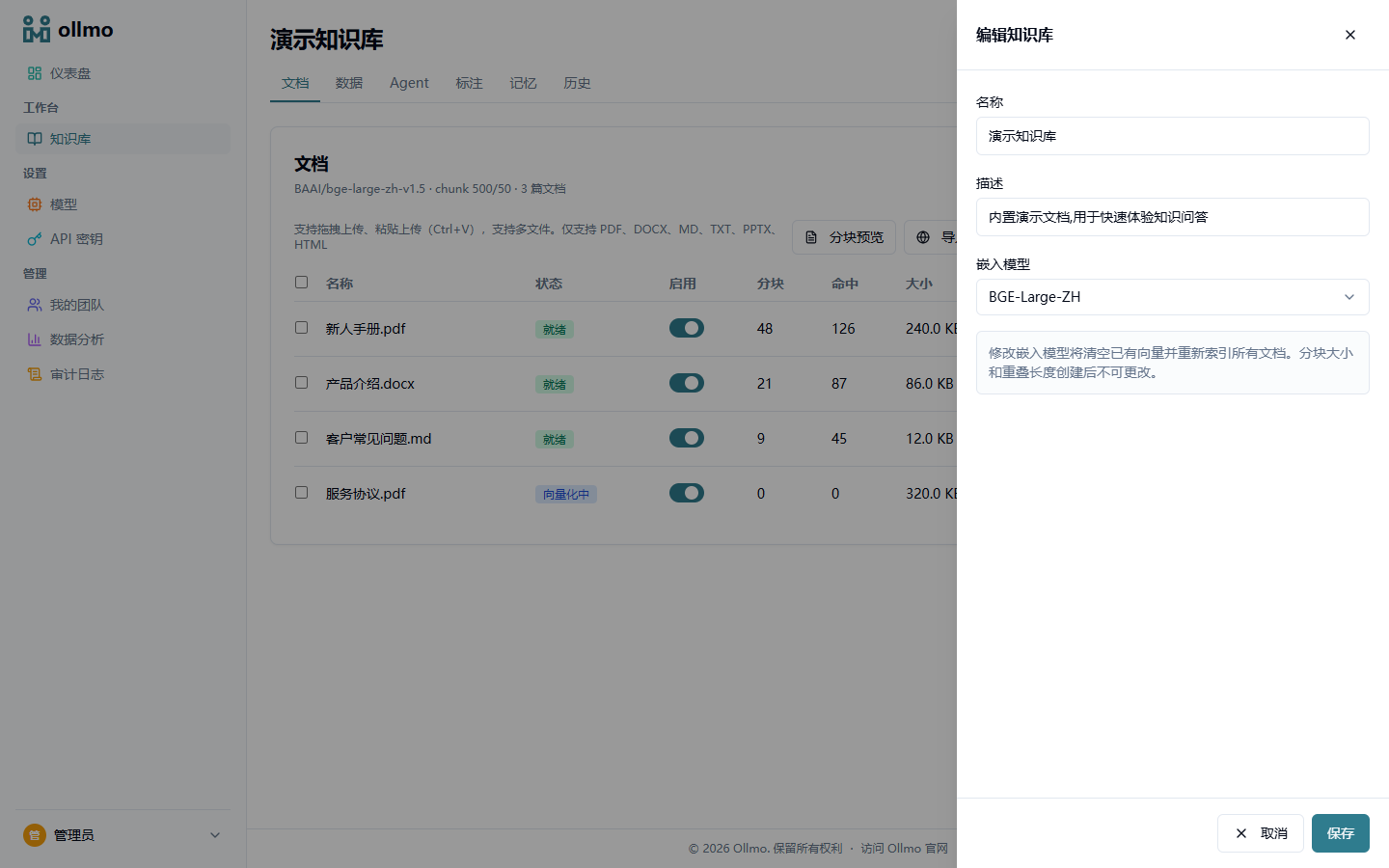
- The chunking strategy and chunk size cannot be changed after creation, so choose them based on your document types;
- Changing the Embedding model clears existing vectors and re-indexes all documents;
- A knowledge base supports two visibility levels: "private / team-shared".
Upload documents
Open a knowledge base's detail page and drag & drop, paste, or select multiple files to upload. Documents enter an asynchronous pipeline: parse → chunk → embed → index, with status shown in real time in the list:
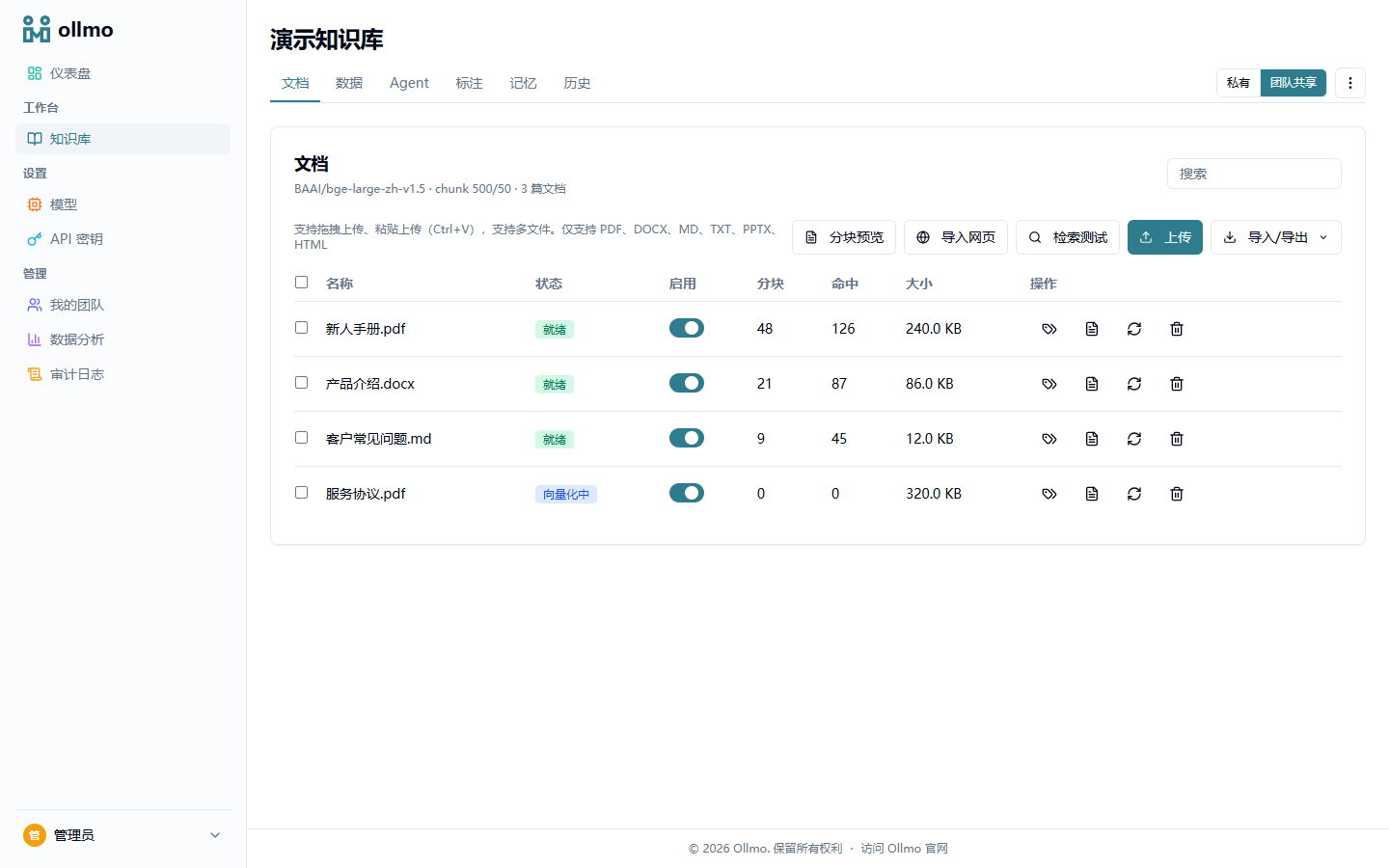
Batch selection, enable/disable documents, re-parse, metadata editing, and chunk preview are supported.
Curated Q&A
Maintain human-curated standard Q&A (question-answer pairs) for a knowledge base. When a user question closely matches a curated question, the preset answer is returned directly, skipping retrieval and model generation — keeping high-frequency answers stable and consistent, and suiting tightly-constrained scenarios such as customer-service scripts.
Retrieval testing
Each knowledge base has a built-in retrieval testing page where you can compare the balance of keyword and semantic weights and inspect the hits at each stage (dense / lexical / fused). It is the primary tool for tuning retrieval quality.
Citation tracing
Every citation under an answer is clickable: clicking opens the source document viewer on the right, positioned at the cited passage:
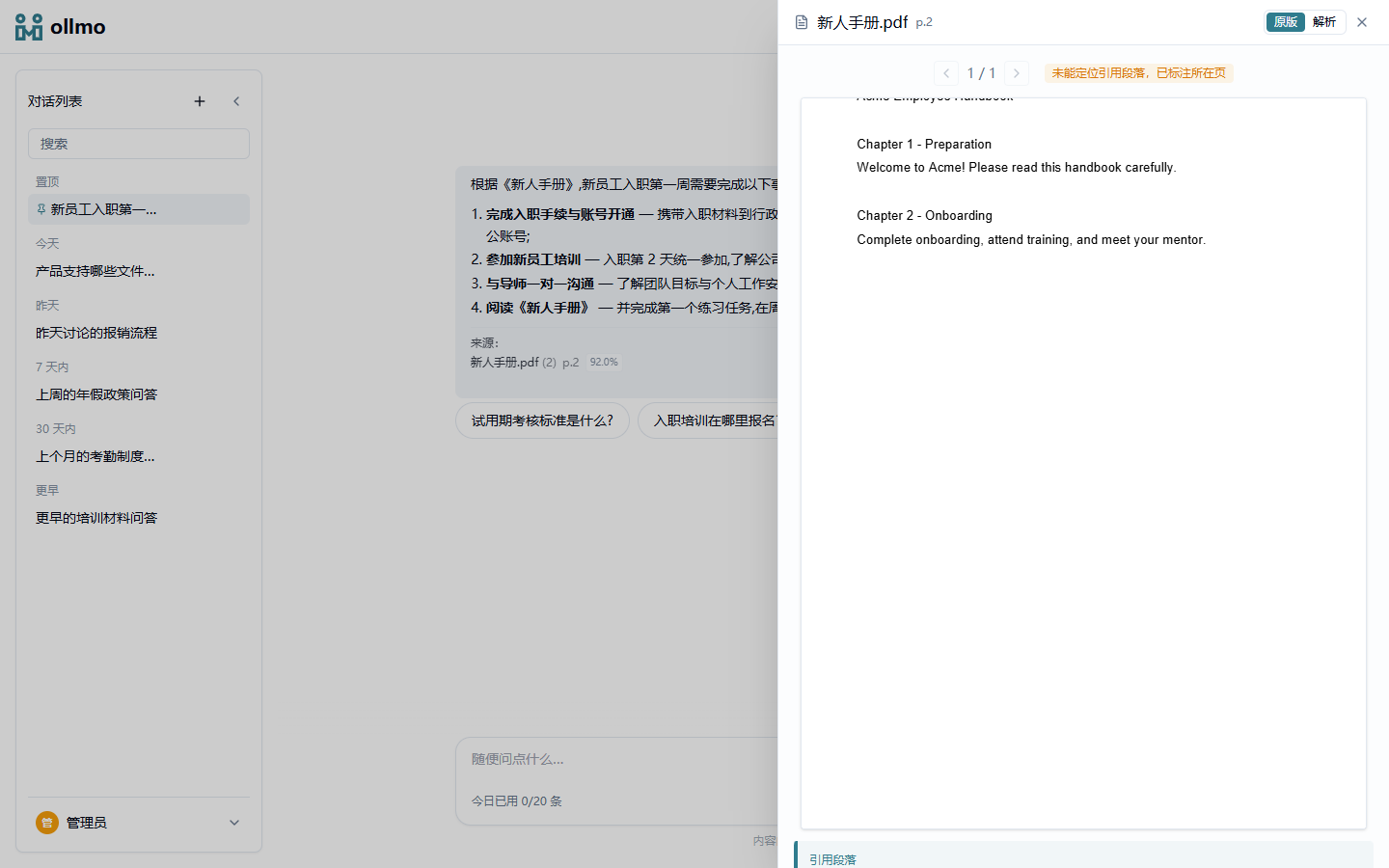
- Original mode: PDF.js renders the original PDF with page navigation, highlighting the cited passage right on the page;
- Parsed mode: the parsed output is paginated, with the hit passage highlighted and scrolled into view;
- Side by side: on desktop the document panel sits next to the conversation; on mobile it takes the full screen.
Scanned documents where the passage cannot be located degrade gracefully to page-level annotation.
Related pages
- Data Processing Pipeline — Visual configuration of the ingestion pipeline
- Agent Canvas — Orchestrate the conversation pipeline
- Model Configuration — Provider and model management